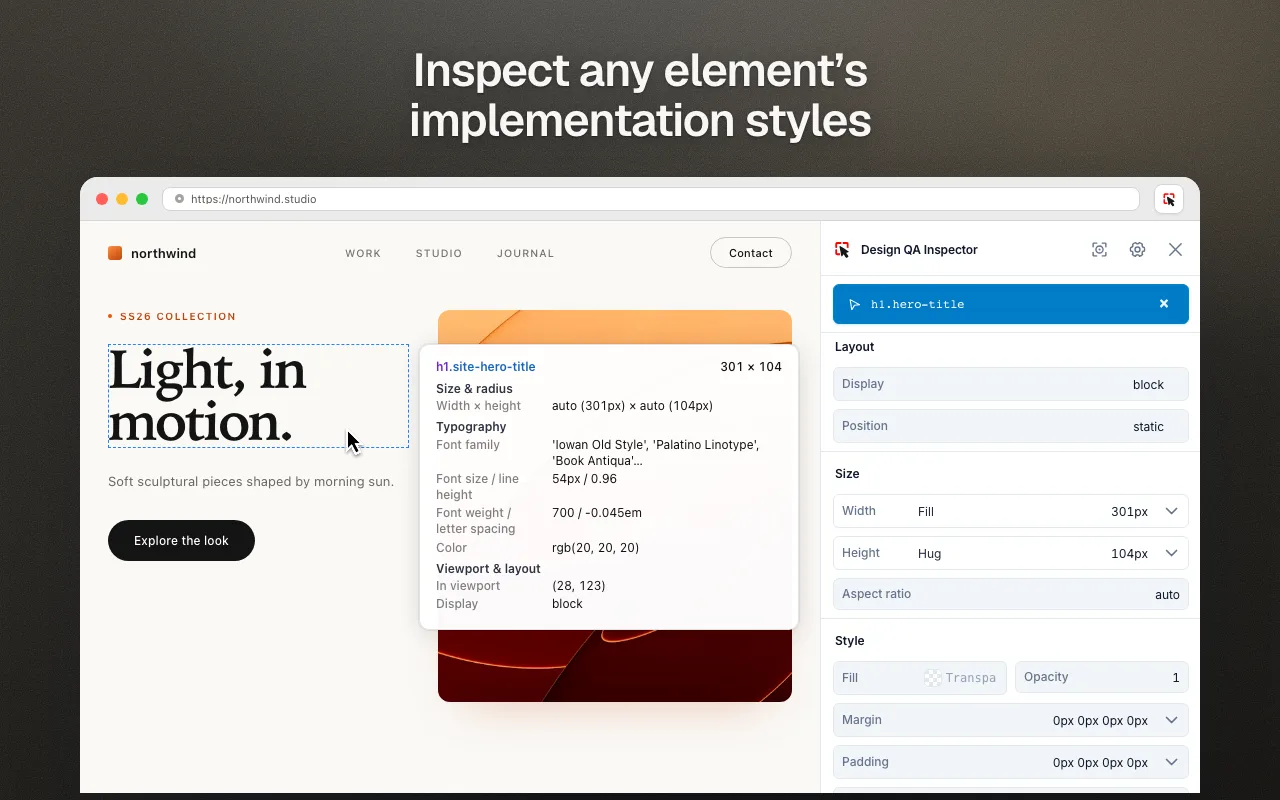
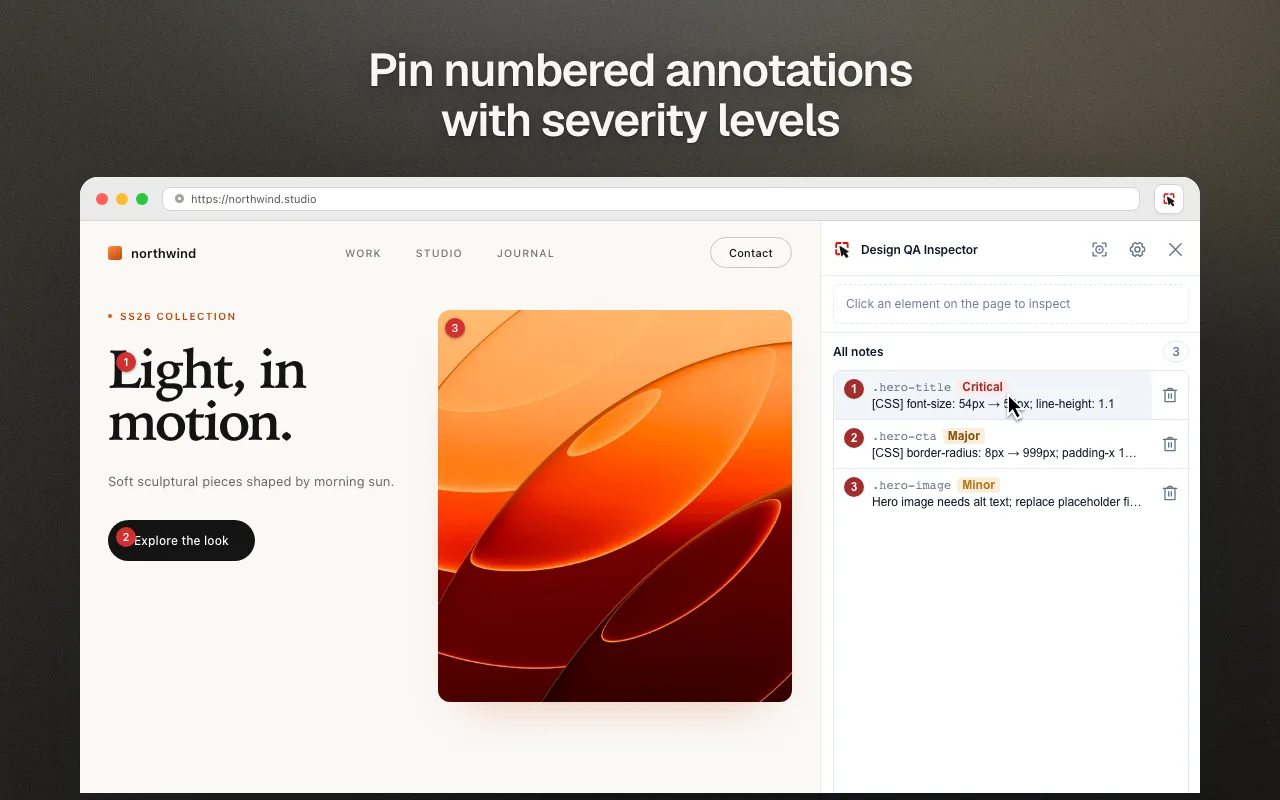
Design QA Inspector is a Chrome extension for inspecting live pages, annotating UI issues and previewing local CSS fixes before sharing evidence with your team.
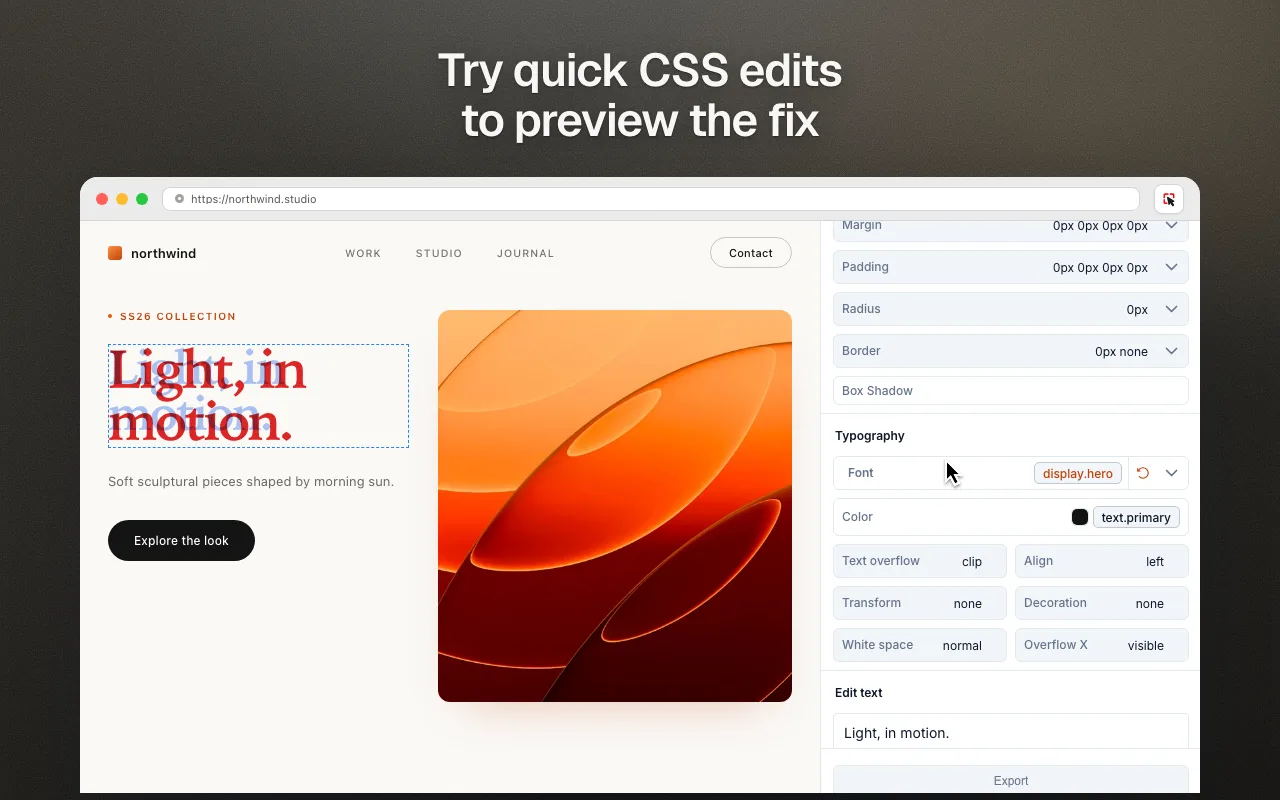
Try a different value in Quick Edit. Adjust spacing, type or color directly on the page, then reset when you’re done.
Import your design-token index for Token Match suggestions. Previews are local; they don’t change your site’s source code.
Show the intended result while the original context is still in view.↗
03 / Export & hand off
Give the next person context.
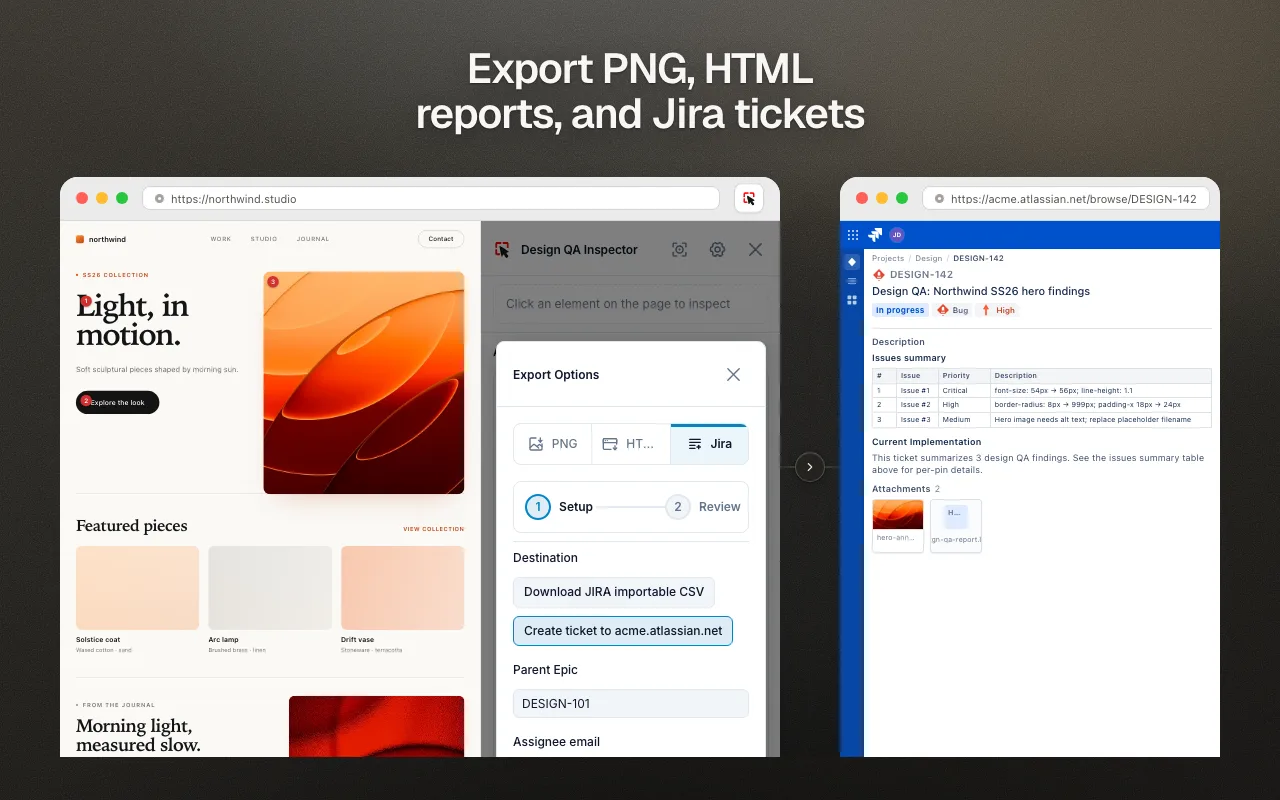
Export an annotated PNG or an HTML report with notes and element crops. Prepare Jira CSV drafts, or create Jira Cloud tickets through a connection you configure.
PNG export needs at least one saved note. Jira CSV contains issue metadata; direct ticket creation can attach screenshots.
Choose a file for review, or send selected issues to your Jira project.↗
Local by default
Review first. Share when you choose.
Inspection, notes and CSS previews work without an account. Notes are stored in your browser. Files are downloaded locally; connecting Jira sends the issues you choose to that service.
Install from the Chrome Web Store in Chrome or Edge, open the page you want to review, then click the extension icon. Browser-internal pages such as chrome:// pages are restricted. Some embedded frames and closed shadow roots can’t be inspected.
Does it compare a page with Figma automatically?+
You choose the elements and review their implementation. You can import a design-token index for Token Match suggestions; this is not an automatic Figma-to-page comparison.
Will Quick Edit change my website?+
Quick Edit creates a local preview in your browser. It doesn’t update your source code or deploy changes. Use Reset to restore the original values.
What can I share with my team?+
Download annotated PNGs, HTML reports or Jira CSV drafts. With your own Jira Cloud connection, you can create tickets directly. Full-page capture is best effort on very long or dynamic pages.
Your next design review
Keep the details in focus.
Open a page. Pick an element. Start with one clear note.