 Design QA Inspector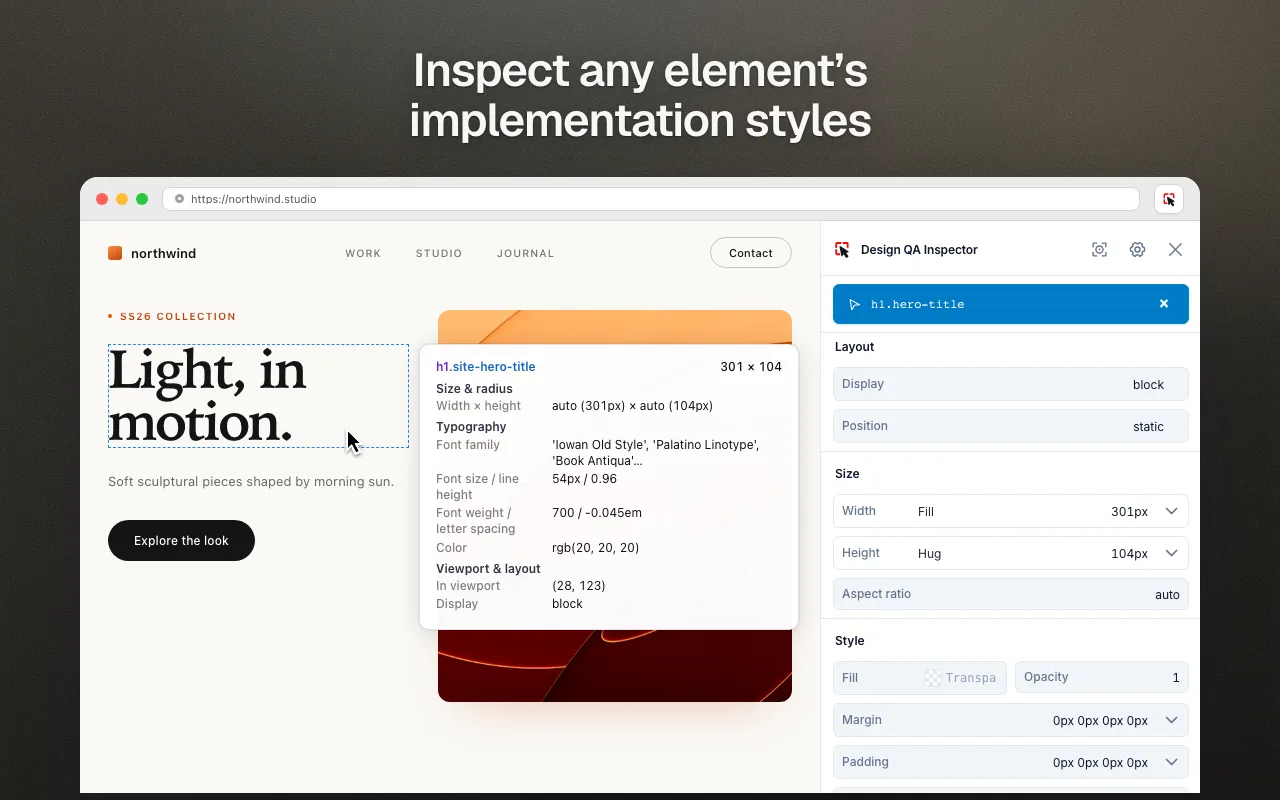
01
Start with one reviewable page
Choose a stable page, a viewport and a reference. Record the page URL, browser, viewport width and the state you reviewed. For example: “Checkout / delivery step, desktop at 1440 px, delivery address filled.” Use the same state when you recheck a fix.
For a small practice task, open the checkout review example. Its expected specification is a 16 px gap above the action and a 16 px button label. The example deliberately uses an 8 px gap and a 14 px label. These are sample design discrepancies, rather than defects found in a customer site.
02
Inspect the element before writing the issue
Install and open Design QA Inspector on the page you are reviewing, then choose the relevant element. Read its spacing and typography. Compare the measured property with your reference and inspect the parent when spacing could come from the container.
In the practice page, select “Continue to payment” and check its font size. Inspect the action container for the gap above it. A screenshot shows where the issue is; the actual property explains what needs to change.
03
Save a note that someone can act on
Pin a numbered annotation to the affected element. Include observed behavior, expected behavior and a way to reproduce it, then assign severity and status. Keep separate causes in separate notes.
Checkout action label — observed: 14 px; expected: 16 px in the review specification. Reproduce on the delivery step at 1440 px. Acceptance: the action label measures 16 px and remains readable without clipping at 390 px.
Download the sample review checklist as a starting point. It is an ordinary worksheet, not a preconfigured Jira import.
04
Preview a CSS fix and check nearby states
Use the extension’s local CSS preview to try the change. Check the action with a longer label, keyboard focus and a narrow viewport. A preview helps evaluate a proposed fix; the production site changes only when its code is updated and deployed.
If you use Token Match, import your own design-token index and review each suggestion. The extension does not automatically compare an entire Figma file with a website.
05
Export evidence and close the loop
Save at least one annotation before exporting an annotated PNG. Use an HTML report when reviewers need the issue notes and element crops together. Jira CSV drafts and an optional Jira Cloud connection are available for handoff; a Jira connection sends only the issues you choose to that service.
Open the exported file and confirm the correct URL, note numbers and screenshots. Very long or changing pages can limit full-page capture. After the code fix is deployed, repeat the original viewport and state, then mark the issue resolved only after that recheck.
06
A compact acceptance checklist
- The issue has a location, expected value and observed value.
- The proposed change works with keyboard focus and at a narrow width.
- The exported evidence opens and matches the reviewed page.
- The deployed fix has been checked in the original state.
Inspection, notes and CSS previews work without an account. Notes stay in your browser; download evidence you want to retain.